
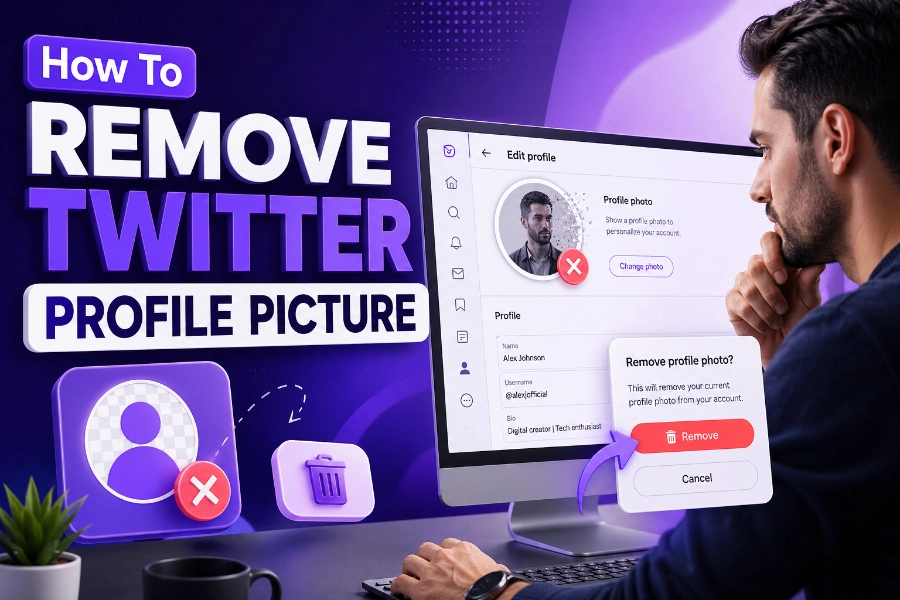
Removing your Twitter profile picture can be an essential part of maintaining your online privacy or simply changing your look on the platform. Whether you want to remove your photo entirely or switch to something more anonymous, it’s a straightforward process once you know where to go.
In this article, we’ll explain how to remove or change your Twitter profile picture using various methods. So if you’re ready to take control of your Twitter profile, let’s dive right into it!
Step-by-Step Guide to Remove Your Twitter Profile Picture
If you’re looking to change or remove your Twitter profile picture, the process is fairly simple. Though Twitter doesn’t allow users to revert directly to the default image, you can easily update or replace it. This ensures that your profile stays fresh while protecting your privacy if needed.
Changing Your Profile Picture
Here are the steps to change or remove your Twitter profile picture:
- Open Twitter: Whether you are using the mobile app or the desktop version, log in to your account.
- Navigate to Your Profile: Click on your profile icon at the top-right corner (on desktop) or swipe to the profile section on mobile.
- Edit Profile: Look for the “Edit Profile” button to adjust various elements of your account.
- Select the Profile Picture: Click on the camera icon next to your profile picture to either remove it or replace it with a new image.
- Upload a New Picture: If you wish to change your profile picture, select the new image and upload it.
If you don’t wish to upload a new image, you can choose an avatar or any other default image. However, you cannot fully remove your profile picture and leave the space blank on Twitter’s interface anymore. But using something simple like a default avatar keeps your profile active while safeguarding your privacy.
By following this simple process, you can easily manage your profile picture. Another way to maintain your profile’s privacy is by using third-party tools. For example, if you want to view Twitter profiles without being detected, you might consider using a Twitter account viewer. This can help you remain anonymous while still exploring Twitter profiles and tweets.
Hiding Your Profile Picture on Twitter
Sometimes, you might want to hide your profile picture from view without deleting it entirely. While there isn’t a built-in option on Twitter to completely hide the profile picture, there are workarounds.
Use TweetDeck to Hide Profile Pictures
One of the most efficient methods is using TweetDeck, Twitter’s social media management tool. TweetDeck lets you manage multiple Twitter accounts, view tweets, and more. Here’s how you can hide your profile picture on TweetDeck:
- Open TweetDeck: Log in to TweetDeck using your Twitter credentials.
- Adjust Settings: In the settings menu, select Display options and hide your profile picture. This can be useful if you want to keep a low profile while managing your account.
- Use Extensions: Another workaround is to use browser extensions that let you modify or hide profile images in TweetDeck.
If you’re looking for a way to safely view content without displaying your picture, the Twitter post viewer tool could come in handy. It lets you check posts without leaving a trace, keeping your identity and photo hidden from others.
Changing Profile Pictures Using the Mobile App
If you’re more of a mobile user, here’s how to change or remove your profile picture using the Twitter app.
- Open the App: Launch the Twitter app on your smartphone.
- Go to Your Profile: Tap on your profile icon at the top-left corner.
- Edit Profile: Select the “Edit Profile” option.
- Change Profile Picture: Tap on your profile picture, select a new one, or choose the default avatar.
While you can’t remove your image completely, selecting a new image or avatar is a quick way to keep your profile updated. The mobile app offers the same features as the desktop version, making the process very easy no matter the device you use.
Why You Might Want to Remove or Change Your Twitter Profile Picture
There are many reasons why you might want to change or remove your Twitter profile picture. One of the main reasons is privacy. By hiding or changing your picture, you can control how much of your personal information is visible to the public. It’s also a way to avoid unwanted attention or simply update your online appearance.
For example, Twitter media viewer tools allow you to view Twitter content anonymously, without having your profile picture displayed. This can help you stay under the radar while you explore the platform.
Conclusion
Removing or changing your Twitter profile picture is an essential step for those concerned about their privacy or simply wanting a fresh look. Whether you prefer to hide your picture using tools like TweetDeck or use a simple avatar to keep things private, there are multiple ways to achieve the desired result. Remember, though you can’t fully remove the picture anymore, there are many other options to manage your Twitter profile effectively.
For more control over your Twitter experience, using third-party tools like Twitter profile viewers can help you navigate the platform while keeping your identity hidden. Always stay safe and make sure your online presence reflects your privacy preferences.
FAQs
How do I remove my Twitter profile picture?
To remove your Twitter profile picture, go to your profile, click on the “Edit Profile” option, and select your profile picture. Choose a default avatar or another image to replace it, as Twitter no longer allows full removal.
Can I hide my Twitter profile picture?
While Twitter doesn’t allow you to hide your profile picture directly, you can use tools like TweetDeck to manage your profile and display your picture differently. Alternatively, using a third-party tool can help keep your picture private.
Why can’t I remove my Twitter profile picture?
Twitter removed the feature that allowed users to remove their profile picture completely. Now, you can only replace your picture with a default avatar or another image, but it can’t be entirely erased from your profile.
How do I change my Twitter profile picture?
To change your Twitter profile picture, go to your profile, click on “Edit Profile,” and tap the camera icon next to your picture. From there, upload a new image or select a default avatar.
How do I update my Twitter profile picture on mobile?
Open the Twitter app, go to your profile, tap on “Edit Profile,” and tap the camera icon. Choose a new picture from your gallery or set a default avatar to update your profile picture on mobile.
Can I use an avatar instead of a real photo on Twitter?
Yes, you can use an avatar instead of a real photo. Simply upload an image that represents you or your brand, ensuring it’s in line with Twitter’s guidelines for appropriate images.
How do I keep my Twitter profile picture private?
You can keep your Twitter profile picture private by using third-party tools like the Twitter profile viewer to hide your profile picture while exploring other accounts, keeping your image and identity secure.
Is there a way to hide my Twitter picture on TweetDeck?
TweetDeck allows you to hide profile pictures by adjusting the display settings. While it doesn’t remove the picture, you can hide it from view for a more private browsing experience on the platform.
Why is Twitter not letting me change my profile picture?
If Twitter isn’t allowing you to change your profile picture, it could be due to an internet connection issue, a bug, or an outdated version of the app. Try updating or reinstalling the app to resolve the issue.
Can I remove my Twitter profile picture without changing it?
Unfortunately, Twitter no longer allows users to fully remove their profile picture. You can only replace it with a default image or a new one, but there is no option to leave the picture space empty.